
You’re lining up the final push. Callouts are flying, utility is timed, everyone is locked in. Then it hits.
A harsh crackle when you shout. An endless echo after every word. Or the steady hum of your desk fan bleeding into comms.
Comms fall apart, and so does the round.
If that sounds familiar, you’re not alone. Voice chat problems are common, and most fixes are simple once you know what’s actually causing them. Clear team communication depends on more than just a decent mic.
Audio works like a chain made up of your microphone, your room, your software settings, and even your teammates’ setups.
Any weak link can ruin the whole match.
What’s Actually Ruining Your Comms?

No single culprit explains every messy voice channel. Echo, clipping, and background noise each have their own causes.
Echo – The Feedback Loop You Can Hear
Echo usually happens when your output finds its way back into your mic.
Common causes include:
- Open speakers bleeding into an open microphone
- Open back headsets leaking sound into the mic
- Mic gain set too high, picking up your game audio in the room
- Echo cancellation disabled in your chat app
- A teammate using speakers, creating a loop on their end
Switching to closed back headphones for PC gaming often fixes echo instantly, especially if you were using desktop speakers or open back headphones.
Clipping – When Your Mic Red-Lines
Clipping is that crunchy, distorted sound when you get loud during a clutch moment. Your mic is literally overloading.
It usually comes down to:
- Input gain set too high
- Microphone Boost enabled in Windows
- Mic positioned too close to your mouth
- Automatic Gain Control pushing levels too aggressively
- Shouting without any compression or limiting
If your voice sounds clean when you talk normally but distorts when you yell, gain staging is the problem.
Background Noise – The Constant Buzz
Background noise creeps in slowly and never leaves. Fans, keyboards, roommates, traffic, all of it stacks up.
Frequent sources:
- Mechanical keyboard clicks and mouse thumps
- PC case fans and GPU coil whine
- HVAC systems or street noise
- Sensitive condenser mics picking up the entire room
- Desk vibrations traveling through a cheap mic stand
Condenser microphones are especially sensitive. In untreated rooms, they capture almost everything.
Quick Wins Before the Next Match
Most problems can be reduced in under five minutes.
1. Move the Mic and Fix the Angle
Position the mic two to three finger widths away, near the corner of your mouth instead of directly in front.
Aim it slightly across your face so breath does not hit it head on.
Lowering the mic just below mouth level and angling it upward also helps reduce harsh plosives.
2. Set Input Levels Properly
In Windows, go to Sound Settings, then Input, then Device Properties, and check Levels.
Start around 80% to 90% input volume with Microphone Boost at 0 dB. Only add boost if your mic is truly quiet.
Run a mic test in your chat app and speak at your loudest callout volume. If the meter hits red, lower the input level until peaks sit just under distortion.
3. Kill Easy Echo Sources
Mute desktop speakers during voice chat. Use headphones, preferably closed back.
Disable “Listen to this device” in Windows so your mic does not feed back into your own headphones.
4. Turn On Noise Suppression and Echo Cancellation
In Discord, open Settings, then Voice and Video.
- Enable Echo Cancellation
- Turn on Noise Suppression. Start with Standard
- Disable Automatic Gain Control if your volume keeps jumping
NVIDIA users can enable RTX Voice or Noise Removal. AMD users have AMD Noise Suppression with similar results.
5. Choose the Right Activation Method
Push-to-talk is the safest option in noisy rooms. Loud keyboards and fans will not trigger your mic constantly.
Voice Activity works well if your room is already quiet. Adjust the sensitivity so normal breathing does not activate it.
Step‑By‑Step – Fix Echo, Clipping, and Noise for Good
Start with headphones. If the echo disappears immediately, speaker bleed was the cause. Closed-back models reduce audio leakage far more than open designs.
Lower Windows master volume and in game volume slightly if faint echo persists. Enable Echo Cancellation in any app you use for voice.
Check Windows sound settings and disable enhancements you do not recognize. If one teammate keeps hearing echo while others do not, problem may be on their end.
Ask them to switch to headphones and run a mic test.
Fixing Clipping and Locking In Clean Gain
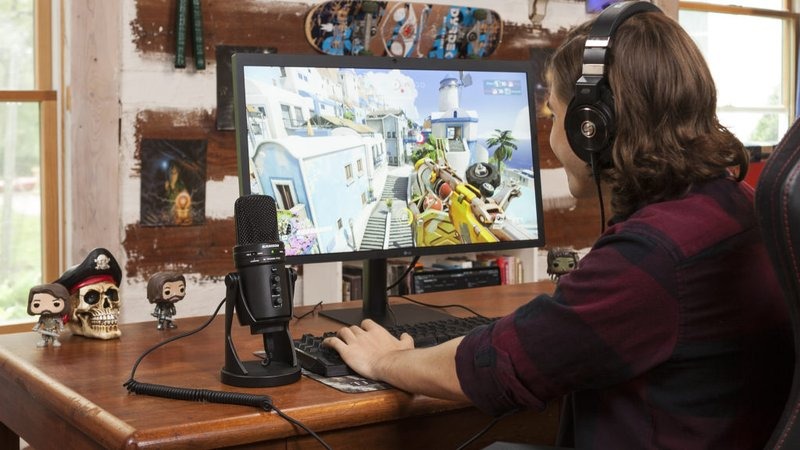
Open your chat app’s mic test and speak at your loudest expected volume.
Adjust Windows input level so peaks land just under the red zone. Leave Microphone Boost at 0 dB unless absolutely necessary.
Disable Automatic Gain Control if it keeps pushing you into distortion.
Adding light processing can help. A simple chain works well if your software supports it:
- Noise gate or expander set just below quiet speech
- Compressor at a 3 to 1 or 4 to 1 ratio, reducing loud peaks by 3 to 6 dB
- Limiter with a ceiling at minus 1 dB to catch sudden spikes
Mic positioning still matters. Side address microphones should be spoken into at the front grill, not the top. Keep it slightly off axis and add a pop filter if needed.
Reducing Background Noise at the Source
Lowering noise at its source works better than stacking heavy filters.
Move the mic closer to your mouth and reduce gain to improve signal to noise ratio. Tighten your boom arm and use a shock mount to reduce desk vibrations. Add O rings to keycaps if your keyboard is loud.
Close windows. Turn off unnecessary fans. Soft furnishings like rugs and curtains reduce reflections and make your voice sound tighter.
Software suppression should be a final polish, not a crutch. Stacking too many filters can make your voice sound artificial.
Your “Between Rounds” Checklist
Before queueing again, run through a quick check:
- Headphones selected as output
- Correct microphone selected as input
- Windows input level around 80 to 90 percent
- Microphone Boost at 0 dB
- Echo Cancellation and Noise Suppression enabled
- Push to Talk set if your room is noisy
- Ten second test recording to confirm clarity
Common Causes and Quick Fix Matrix
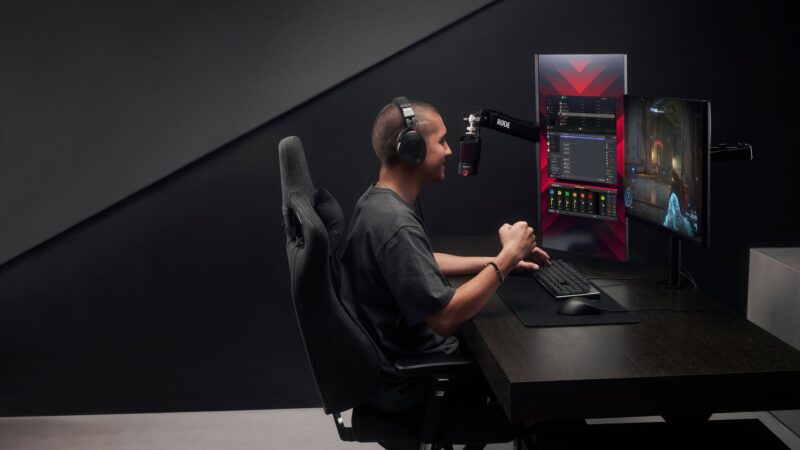
When comms break down, symptoms usually point straight to the problem. Instead of guessing, match what you hear with the likely cause and apply the fix.
Echo
If teammates hear their own voices after you speak, audio is looping back into your mic somewhere.
Most echo problems come down to speaker bleed or settings. Start by switching to closed back headphones. Enable Echo Cancellation in your chat app.
Lower your system and in game master volume slightly if bleed continues. Quick changes like these solve most echo complaints in minutes.
Clipping
Distorted, crunchy audio when you get loud means your mic is overloading.
Lower your Windows input gain first. Disable Automatic Gain Control if it keeps pushing levels higher than they should be. Add a limiter set just under 0 dB to catch sudden spikes.
Adjust mic distance so you are not shouting directly into the capsule.
Clean gain structure fixes clipping almost every time.
Background Noise
If fans, keyboard clicks, or street sounds are constantly audible, your mic is picking up too much of the room.
Move the mic closer to your mouth and angle it slightly off axis. Enable Noise Suppression in your chat app.
Add a shock mount or pop filter to reduce vibrations and harsh plosives. Reducing gain after moving the mic closer improves clarity while cutting noise.
App‑Specific Tips (Fast Paths)
Different apps handle voice settings slightly differently. Double check each one instead of assuming they all follow Windows.
Discord
Open Settings, then Voice and Video.
Focus on a few key options:
- Input Device set to your exact microphone model
- Input Sensitivity on Auto at first, then manual so quiet breathing does not trigger
- Echo Cancellation enabled
- Noise Suppression enabled, Standard first
- Automatic Gain Control turned off if volume keeps jumping
Small tweaks here can dramatically stabilize your voice.
Steam Voice and In-Game Chat
Make sure the same input device selected in Windows is selected in the game. Many issues happen simply because the wrong mic is active.
Disable any in-game mic boost if you already set levels in Windows. Double boosting almost always causes distortion.
If you use both Discord and in-game chat, mute one to avoid double processing and strange audio artifacts.
Windows System Sound Settings
Open Control Panel, then Sound, then Recording. Select your microphone and check Properties.
Under Levels, keep input around 80% to 90% and Microphone Boost at 0 dB to start.
Under Listen, make sure “Listen to this device” is unchecked.
Under Advanced, set sample rate to 48,000 Hz. If apps keep changing your levels randomly, uncheck Exclusive Mode.
Gear Choices That Actually Matter
Settings help, but hardware can make everything easier.
Headphones

Closed-back models prevent game audio from leaking into your mic.
Open-back headphones are comfortable and spacious, but they leak sound and can cause echo in voice chat.
Switching to a closed-back headset for PC gaming often removes echo caused by speaker bleed.
Microphones
Dynamic microphones reject room noise more effectively and work well in untreated rooms. Condenser microphones capture more detail but also pick up fans, keyboards, and room reflections.
USB mics are simple and reliable for team comms. XLR setups paired with an audio interface give more control over gain and processing if you want advanced tuning.
Stands and Filters
A solid boom arm and shock mount reduce desk vibrations traveling into the mic. Pop filters or foam covers stop plosives without forcing you to move the mic farther away.
Pro Moves for Consistently Clean Comms
Once basics are handled, small refinements keep audio locked in every match.
Set It and Forget It Gain Staging
Calibrate your mic at your loudest match hype volume. Add a limiter at minus 1 dB so excitement never turns into distortion.
Once levels are dialed in, avoid constantly adjusting them.
Build a Simple Filter Chain
If your app supports it, use processing in this order:
- Gate or expander
- Compressor
- Limiter
Keep settings subtle. If processing is obvious, it is probably too aggressive.
Separate Game and Chat Audio
Use Windows per app volume mixer to keep game audio slightly lower than voice chat.
If you stream, route game and voice to separate tracks so your squad remains clear even during chaotic moments.
Maintenance Habits That Keep Comms Crisp
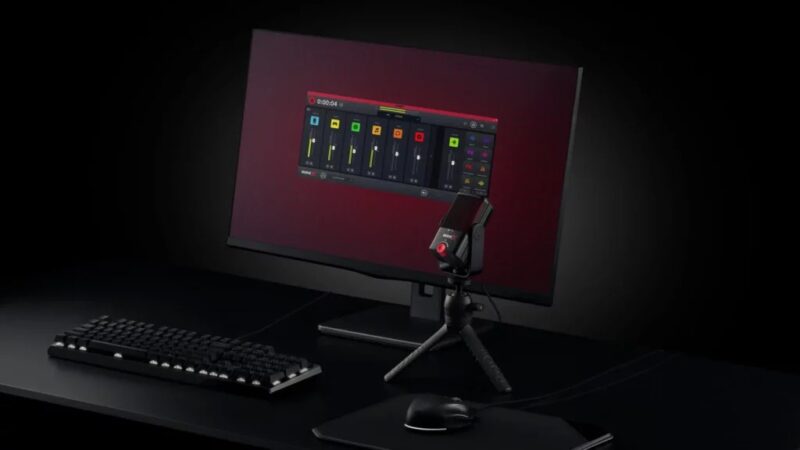
Audio setups drift over time. A few routine checks prevent surprises.
Monthly, check mic position and tighten boom arm screws. Clean dust filters on case fans to reduce background noise.
Quarterly, rerun your mic test after driver or operating system updates.
Any time you install a new game or chat app, confirm the correct input device and level are selected.
Room changes matter too. Moving your setup or rearranging furniture can affect reflections and noise levels, so revisit suppression and sensitivity when your environment changes.
Consistent checks keep your comms sharp, stable, and ready for every round.
When It’s Time to Upgrade
Sometimes settings are not enough. Constant room noise you cannot control, an ultra sensitive mic you cannot position properly, or persistent audio bleed from open headphones can justify new gear.
In many cases, switching to a closed back headset with a decent boom mic solves echo and noise in one step. If you prefer a standalone mic, a basic dynamic USB mic with a pop filter is a reliable, low effort upgrade.
Clear comms win rounds. Set your levels once, lock them in, and make sure your voice is the only thing your squad hears when it matters most.
The Bottom Line
Clear comms win rounds. Stop echo by breaking speaker‑to‑mic loops with headphones and echo cancellation.
Stop clipping by setting sane input gain and using a limiter.
Kill background noise at the source, then let smart suppression clean up the rest. Do a 60‑second mic test before your session, and your squad will hear the difference every time.